Templates
Using Templates
Templates improve productivity, re-use and consistency in creating diagrams. Templates can be used to control Style Properties and Data Attributes and are available for Interfaces and Shapes via the Style Properties menu. When you select the Template the defined properties and attributes are applied to the selected shapes.
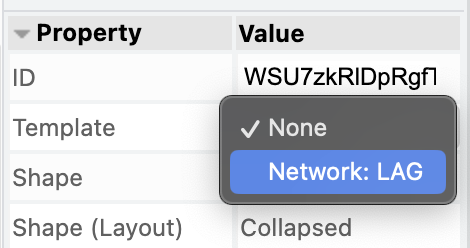
In the Template you can defined per attribute whether the setting is Mandatory or Initial. Mandatory Settings are always (re)applied and cannot be overwritten. Initial Settings are only applied when the Template is initially applied, but can be overwritten if desired.
Example
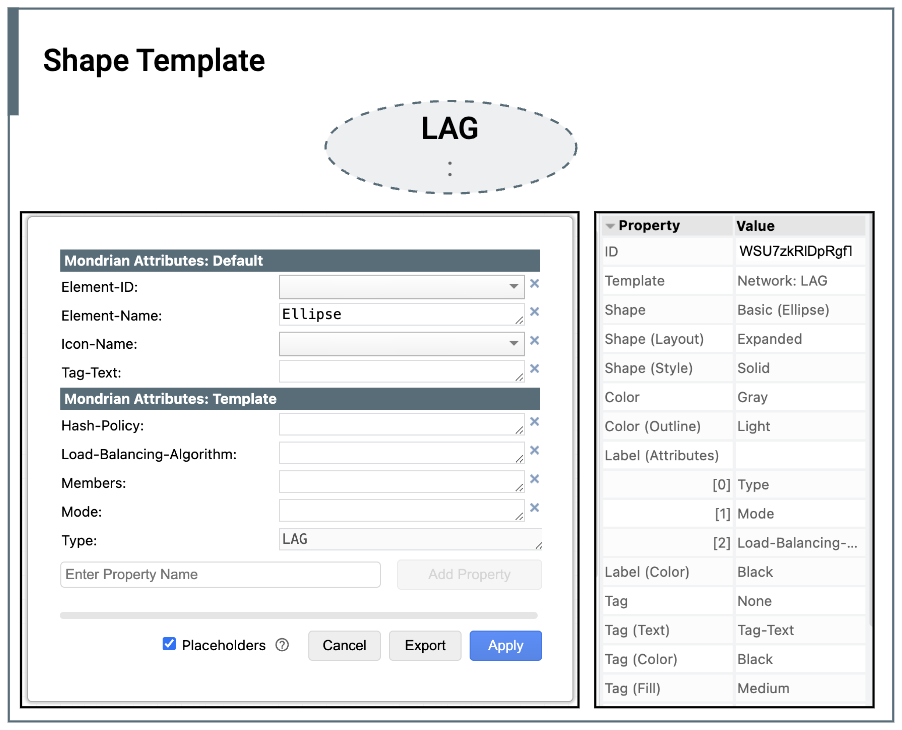
This example defines an Ellipse Shape with a Data Attribute Type set to LAG. These two settings cannot be changed since they are defined as mandatorySettings.
The initialSettings are set when the template is initially applied, such as the color Gray, but can be changed when needed. In addition some Data Attributes are defined, which in this example are all empty. They provide a template you can populate with the desired values.
{
    "nwLAG":
    {
        "elementType": "SHAPE-TEMPLATE",
        "templateName": "Network: LAG",
        "style":
        {
            "mandatorySettings":
            {
                "shapeType":        "bms_ellipse"
            },
            "initialSettings":
            {
                "attributesText":   "Type,Mode,Load-Balancing-Algorithm",
                "colorFamily":      "gray",
                "colorFillIcon":    "light",
                "dashed":           "1",
                "dashPattern":      "4 4"
            }
        },
        "attributes":
        {
            "mandatorySettings":
            {
                "Type": "LAG"
            },

            "initialSettings":
            {
                "Mode": "",
                "Members": "",
                "Load-Balancing-Algorithm": "",
                "Hash-Policy": ""
            }
        }
    }
}
When this Template is applied to a basic Mondrian Ellipse it will lead to the following result:
Adding Templates
Templates are declared via a configuration file and deployed with the Mondrian Diagrams application. Therefore, (currently) you will need support from the Admin of the Mondrian Diagrams application to add additional templates.
Finding Style Properties
Create a Shape or Interface with the styling you like and which you want to create a Template for. Right Click the element to bring out the context menu and select Edit Style....
A dialog window is shown with a long string with key/value pairs separated by a semicolon. Find the settings you want to put into the Template.